
Make PhotoRobot Controls Look Like Your Studio
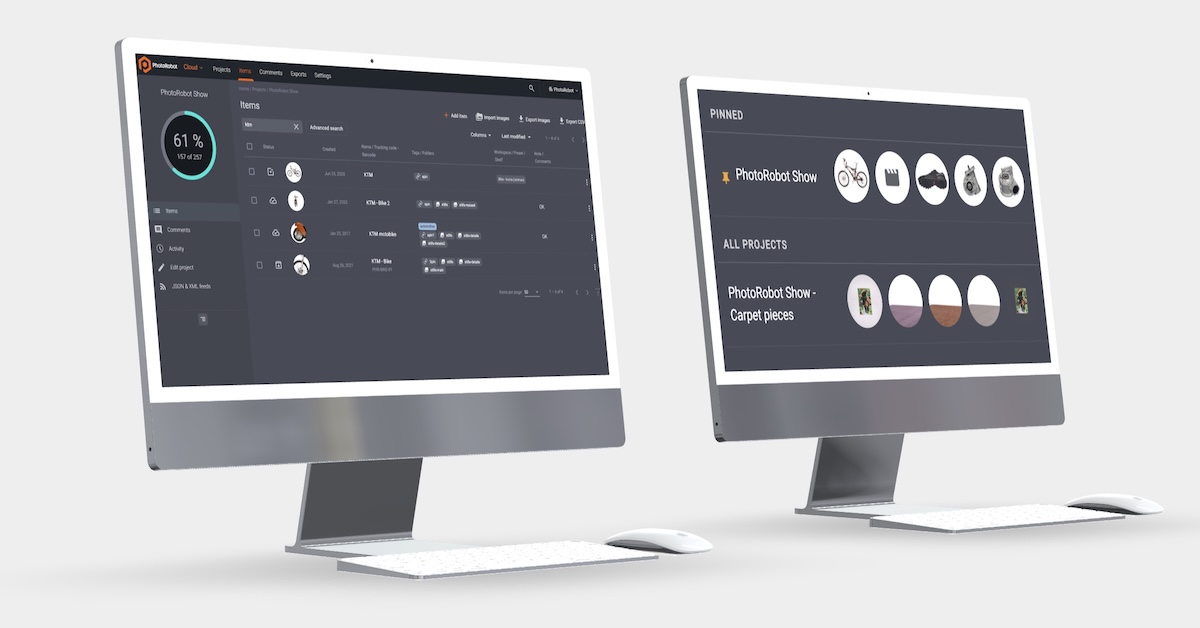
Find your work faster with smarter project item lists, project pinning, organization-wide colored tags, and a cleaner Controls settings experience.
Finding Your Work Faster in PhotoRobot Controls
Make PhotoRobot Controls look like your studio and find work faster with smarter project item lists, project pinning, organization-colored tags, and a settings appearance redesign.
- Configure project item lists with customizable columns and faster selection.
- Pin active projects to the top of your Projects page so you never lose high-priority tasks.
- Set organization-level color tags to convey status and priority.
- Manage settings on focused pages with a unified hero UI.
Read ahead to see how to find your work faster while making _Controls look more like your actual studio.
1 - Smarter Project & Item Lists
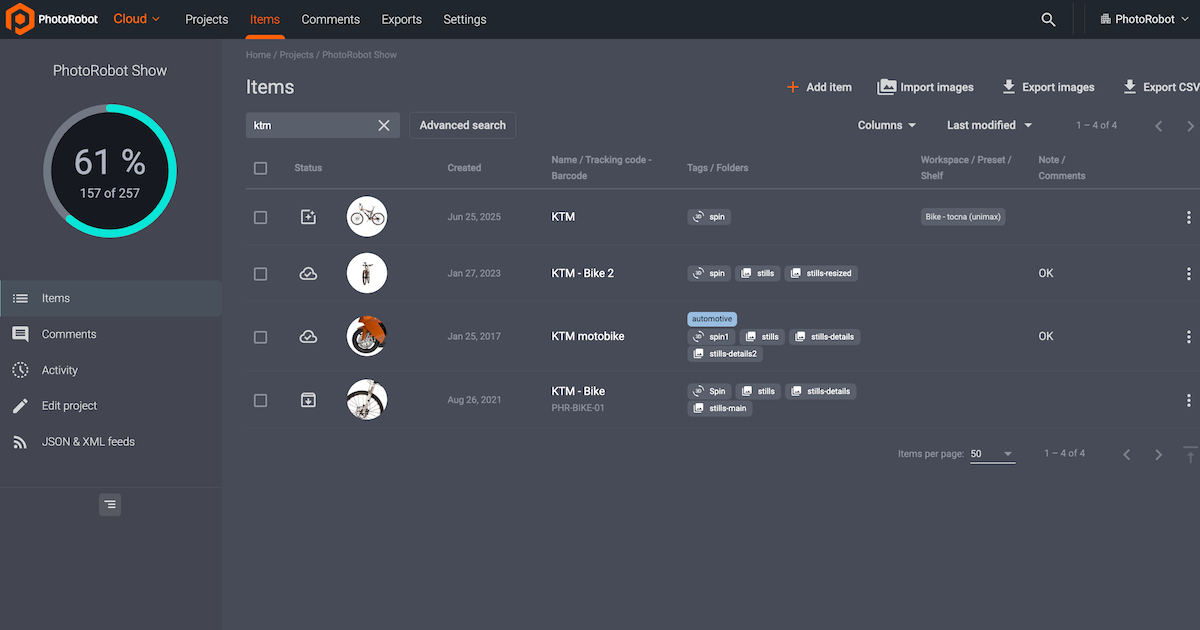
For better organization of your project item lists, PhotoRobot Controls features customizable columns and faster selection. This allows teams to work the All-items view like a production console – all without leaving your filtered list behind.
Lists with a Design for Throughput
As project and item lists are the control surface of every PhotoRobot studio, their design must maximize throughput. PhotoRobot _Controls makes it faster to read and select lists, and easier to personalize them.
Column Selector with Visibility Preferences
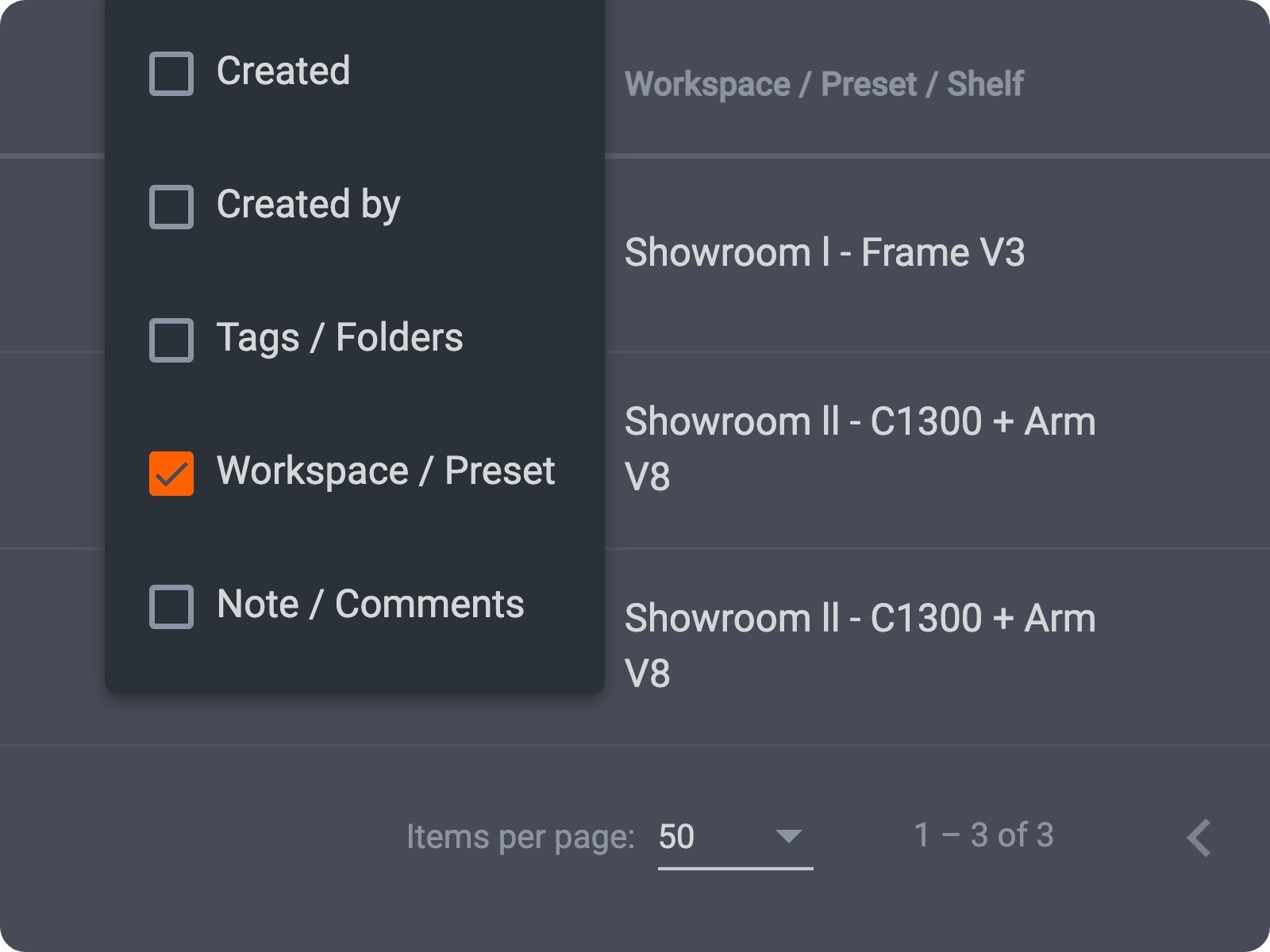
Choose which columns appear on project and item lists — including optional Created and Created by — with visibility preferences that persist. Show only what your role needs; hide the rest.
Selection That Keeps Up
Features to support faster selection means selection will never lag behind.
- Cmd/Ctrl+A shortcuts for table selection speed up bulk actions.
- Row selection on All Items pages brings the same multi-select muscle memory to cross-project views.
- Pair with filter-aware export so bulk delivery matches what you selected or filtered.

Status Icons Refresh
The refreshed Item status icons change icons into Material Symbols. This allows for clearer, more consistent status reading across the app.
Less Scrolling, Fewer Mis-Clicks, Adaptable Lists
Smarter project & item lists amount to less scrolling for your studio managers, with fewer mis-clicks slowing down production. Better yet, lists are adaptable to photographer, retoucher, and manager roles in the same organization.
Simply open any project or list item, use the column menu, and save a layout that matches how you triage work.

2 - Pin Your Projects: Quicker Access to What Matters Most
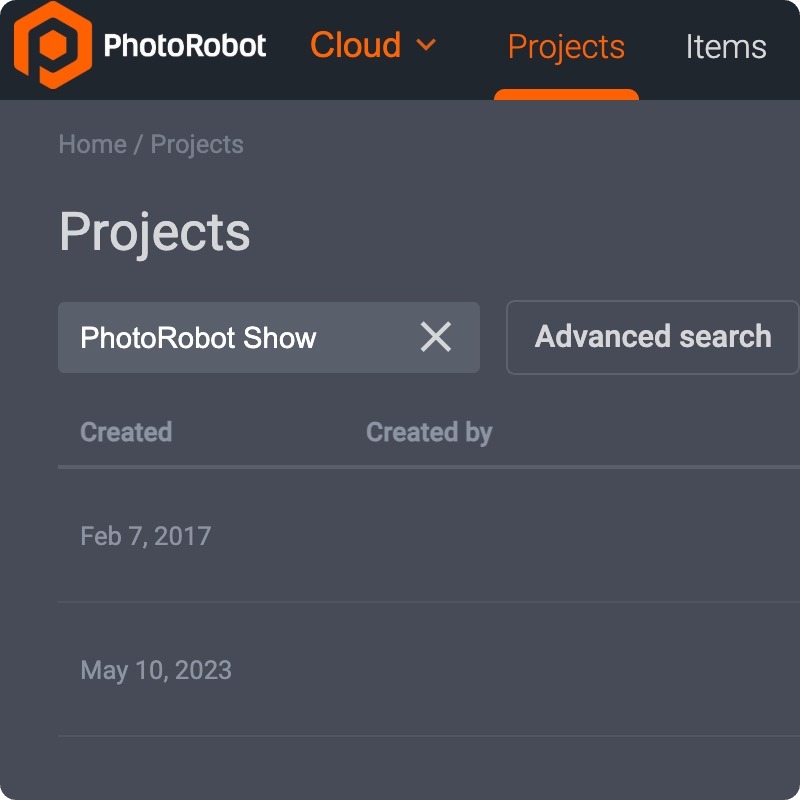
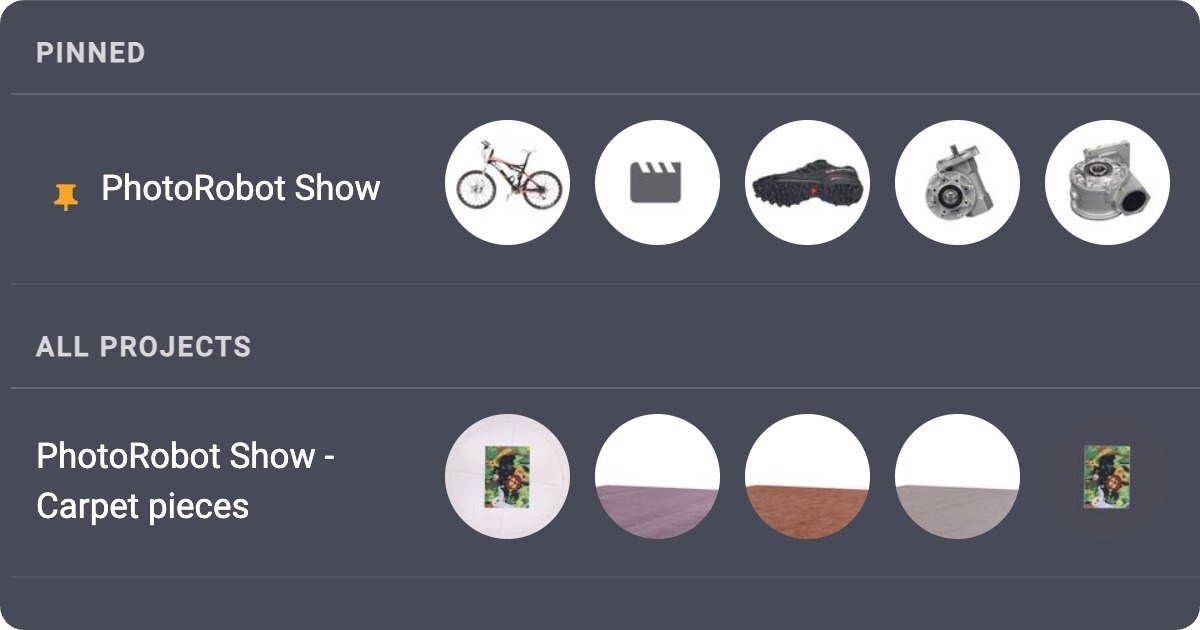
Quickly mark & access what matters most by pinning active projects to the top of your PhotoRobot Projects page. With personal pinning, your high-priority work never scrolls out of sight. Set your priorities without changing what your colleagues see. There is less searching, and more production thanks to one-click entry into any of your projects.

End the Long Searches for Active Work
In busy studios, the Projects list grows quickly, but PhotoRobot _Controls helps you keep the pace. Controls allows each user to individually pin projects, with dedicated pinning settings keeping favorites easy to find. This way, your seasonal campaigns, VIP clients, and today’s shoot lists never compete with archived or low-priority folders.
How Project Pinning Helps Keep the Order
Your studio organization remains in place with personal pins and individual settings.
- Personal pins on the Projects page keep your active work visible — without changing what colleagues see.
- Settings control allows for pinning behavior that matches how your team navigates production.
- Less searching, more shooting — open the right project in one click at the start of every shift.
Ideal for Multi-Project Studios
Quicker access to your studio’s top priorities is crucial whether you run one flagship brand or dozens of client workspaces. Project pinning turns project navigation into muscle memory, with a design to support multi-project studios.
To start pinning projects, simply open the Projects page, pin the campaigns you open every day, and notice the difference in your next session.
3 - Organization-Wide Colored Tags
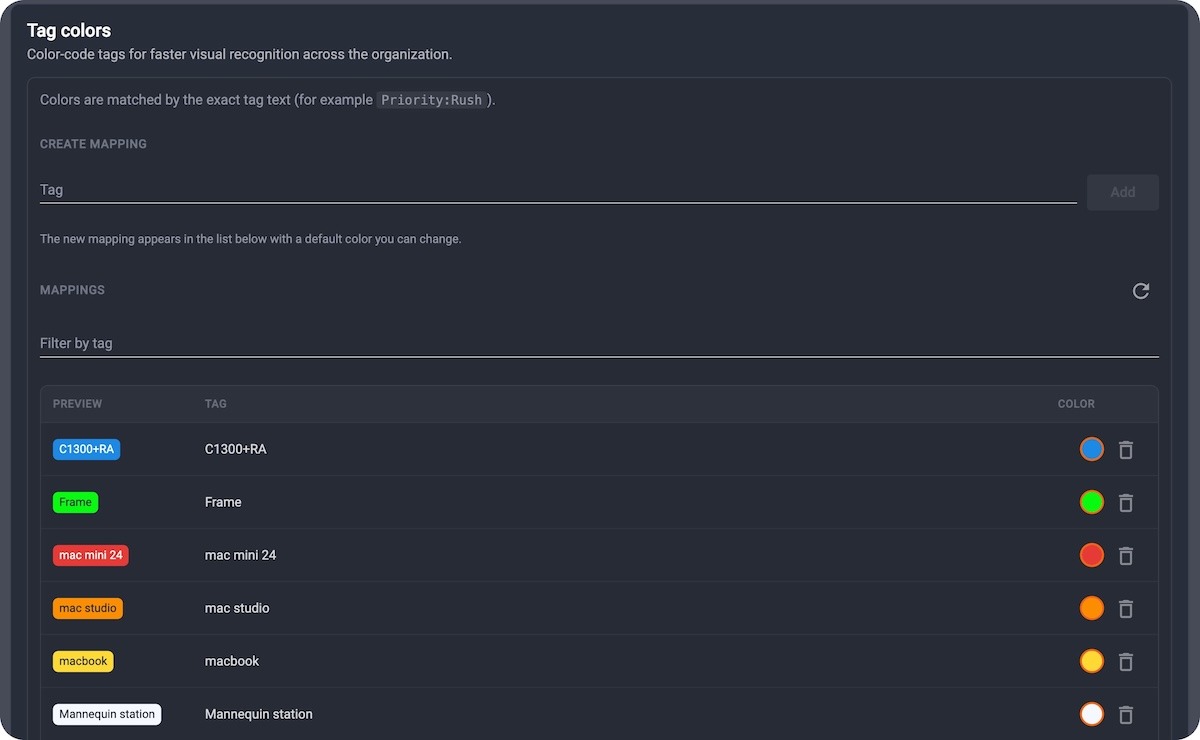
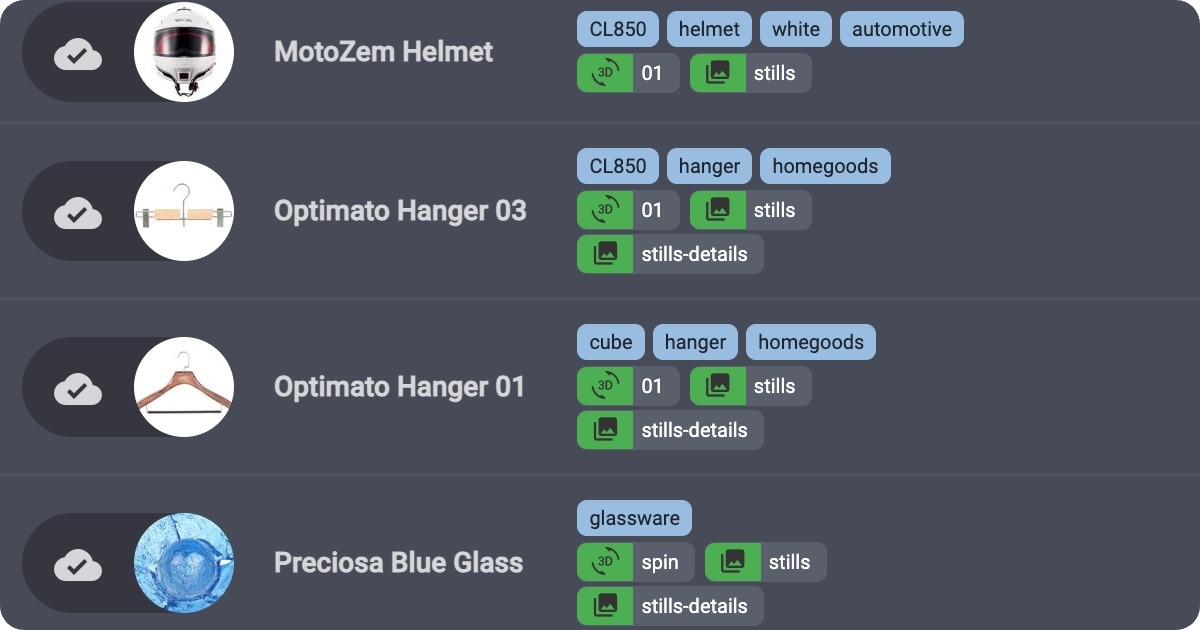
Create every tag in a consistent color across your organization so that status, category, and priority jump out of every project and list item. Customize your organization color scheme, with organization-level color mappings, colored chips in lists, and tags settings management.
Color That Means the Same for Everyone
Tags are only useful when the whole team reads them the same, so _Controls aligns teams with organization-scoped colored tags. Simply define a color once in settings, and see it everywhere tags appear. Set your colors, and align your team.
Quicker Management, Greater Productivity
Fully align teams for quicker management and greater productivity thanks to:
- Org-level color mappings so “rush,” “retouch,” or “marketplace” always look the same.
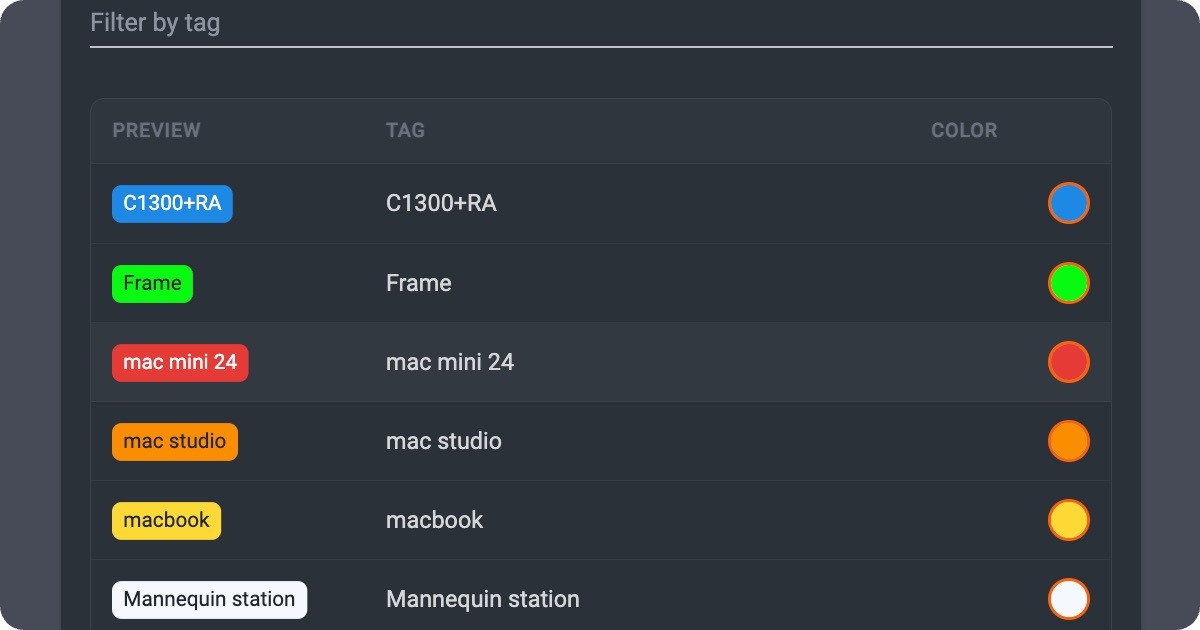
- Colored chips in lists for faster scanning across large catalogs.
- Settings management to add, update, and validate tag colors without custom CSS hacks.
Tags to Fully Support Your Production Floors
When hundreds of SKUs move through capture, edit, and publish every day, visual coding outperforms text-only labels every time. Colored tags transform triage into a glance – for photographers, retouchers, and project managers.
Manage your tags by opening Settings in _Controls, and use Tags (organization) to assign colors to the labels your team already uses.
4 - A Cleaner Controls Settings Experience – And Appearance
Your settings in _Controls are now in focused pages with a unified hero UI. This includes a new Appearance page for language, folder colors, and optional image-folder borders. Your settings match how your real studio works.
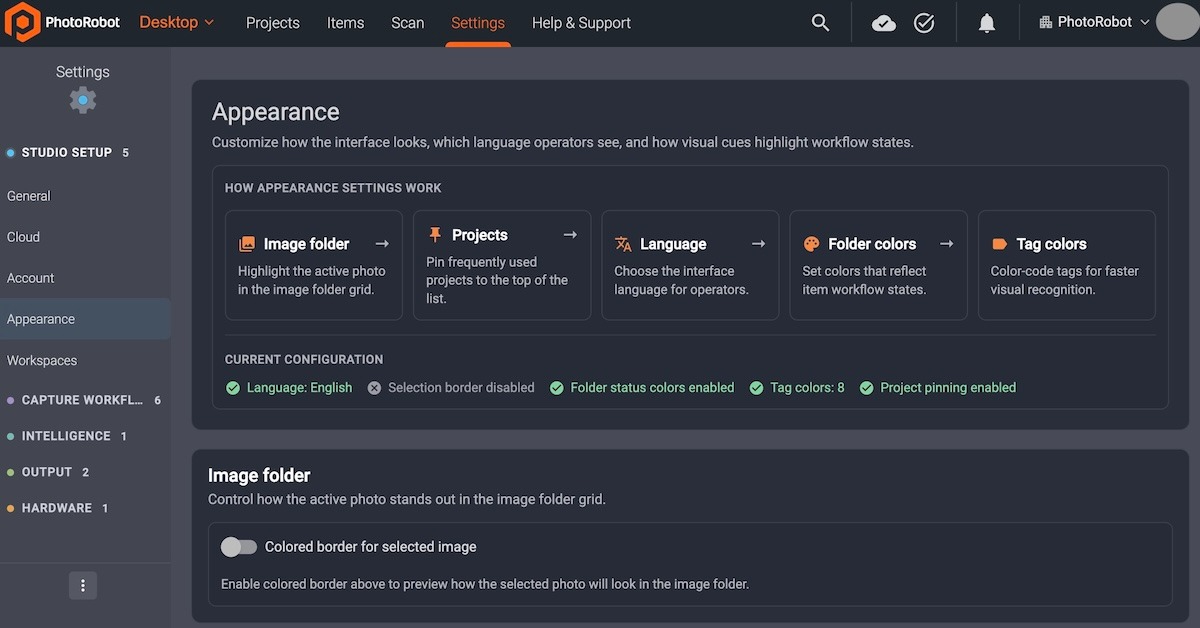
Settings to Match How Studios Work
To ensure configuration feels as intentional as capture, PhotoRobot _Controls has refreshed settings list pages and entity dialogs. Both are now in clearer, focused screens – making them easier to scan, and easier to teach to new operators.

Consistent Layouts, Smooth Dialogs, Adaptable Pages
Comfortably manage _Controls in the studio, now with:
- Revamped settings pages featuring a consistent hero-style layout for each area.
- Streamlined entity dialogs for creating and editing configuration without clutter.
- Appearance page — language and folder colors move out of General into a dedicated home.
- Optional image-folder borders — opt into a customizable colored border on selected folder thumbnails while keeping the subtle highlight as the default for existing users.

Reducing Operator Mistakes with Visual Cues
Visual cues on folders reduce mistakes when operators jump between Still, Spin, and custom directories under pressure. Appearance settings make those cues a deliberate studio choice — not a hidden preference buried in General.
Ensure you are running the latest version of _Controls to access the smoother settings experience and appearance. Open Settings and then Appearance, and tailor folder highlighting to your floor workflow.
PhotoRobot Controls - Unlocking Greater Studio Productivity
PhotoRobot Controls is always evolving with the client ecosystem to ensure greater support and productivity in your automated photography workflows. Find your work faster. Manage quicker, and capture more. PhotoRobot _Controls becomes your studio – connecting your workflows to the robots, cameras, lights, and post-production for full automation in one software.


